Sharing
Share your v0 chat with others to showcase your prompt history or to collaborate on generating components. This allows for seamless teamwork and feedback.
How to share a chat
To share your chat, click on the Share button located at the top right of the chat interface. This will open the sharing configuration dialog.
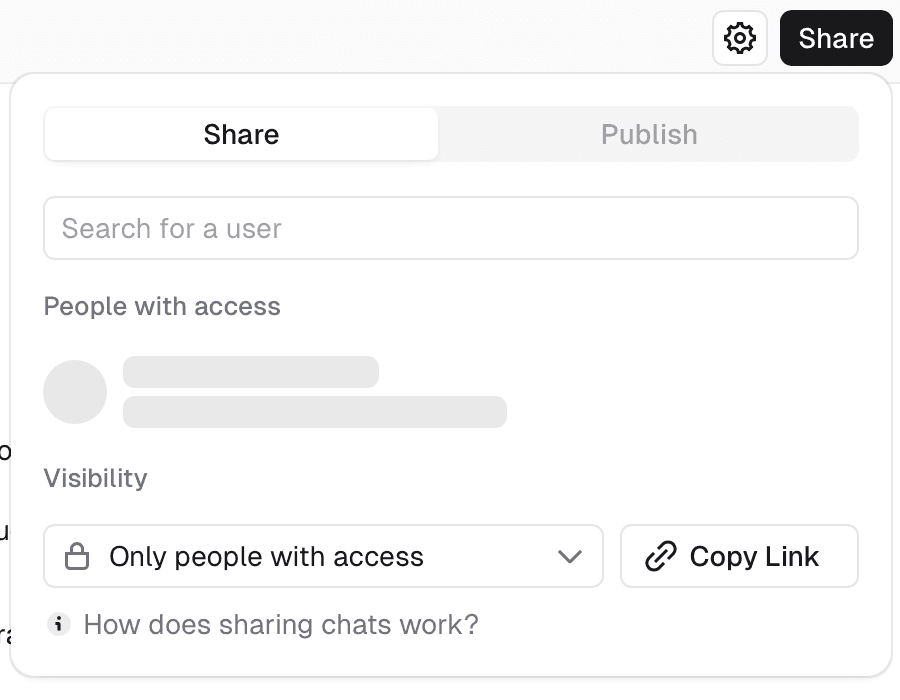
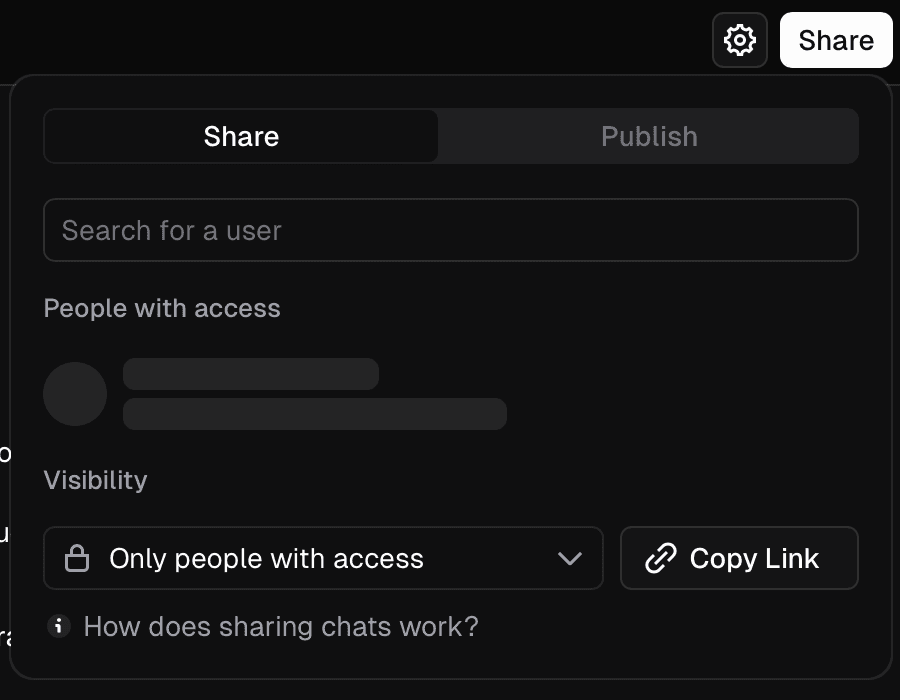
From here, you can configure who has access to this chat.
Sharing options
When you decide to share your chat, you are presented with several options to control who has access.
If you are on a Plus, Business, or Enterprise plan, you can invite individual team members to view or interact with the chat.
Additionally, you can set the visibility for the whole chat.
- Private: This is the default setting. Only people you invite can access the chat.
- Everyone in the team: If you are on a Plus, Business, or Enterprise plan, you can share the chat with everyone in your Vercel team who has v0 access.
- Unlisted: Anyone with the link can access the chat. It will not be indexed by search engines.
- Public: Anyone can view the chat. It may be indexed by search engines and appear in public galleries.
Access permissions
Once you've chosen your sharing option, you can configure the level of access others have.
- Can view: Users with this permission can see the entire chat history but cannot make any changes.
- Can edit: Users with this permission can actively participate in the chat, adding and editing prompts. This is ideal for direct collaboration.
Team Owner access
If your chat is created on a team (any visibility, including Private), anyone with the Vercel Owner team role can open the chat by URL and edit or delete it — even if you didn't invite them and the chat is private. This is intended for administrative oversight (audits, debugging, takeover for departed teammates).
Notes:
- Team Owner access only applies when the Owner is on the team that owns the chat. Owners of other teams have no special access.
- Teammates without the Owner role still need to be invited (or rely on Team visibility) to view or edit a private chat.
- Team Owner access is not surfaced in listings (sidebar, library, project pages) — Owners only see teammate chats they navigate to directly.
- Vercel team roles are managed in Vercel's team settings; the v0 Builder / Creator / Viewer roles are a separate axis and do not grant this administrative access.
Recommended collaboration workflow
While direct edit access is available for close collaboration, we recommend a workflow that encourages individual exploration and preserves the integrity of the original chat.
-
Share with "Can view" permissions: Start by sharing your chat with "Can view" access. This allows your collaborators to see the full prompt history and the generated components without being able to make direct changes.
-
Collaborators Duplicate the Chat: Your collaborators can then "Duplicate" the chat. This creates their own copy of the chat in the team account with the option to keep it linked to the original Vercel project.
-
Iterate Independently: In their duplicated version, they can experiment freely—modifying prompts, trying different generation settings, and exploring new ideas without affecting the original chat.
This "View and Duplicate" workflow is the ideal way to collaborate on v0 projects. It prevents a "too many cooks in the kitchen" scenario, where multiple people editing the same chat can lead to a confusing or messy history. It empowers team members to build upon your work in a non-destructive way, with each person maintaining their own clear line of iteration. When a collaborator has a version they're happy with, they can share their duplicated chat back for review.